
Remove Unwanted Objects from Photos
Erase distractions, props, and imperfections from your product photos — AI fills in naturally.
5 free credits on sign-up • No credit card required
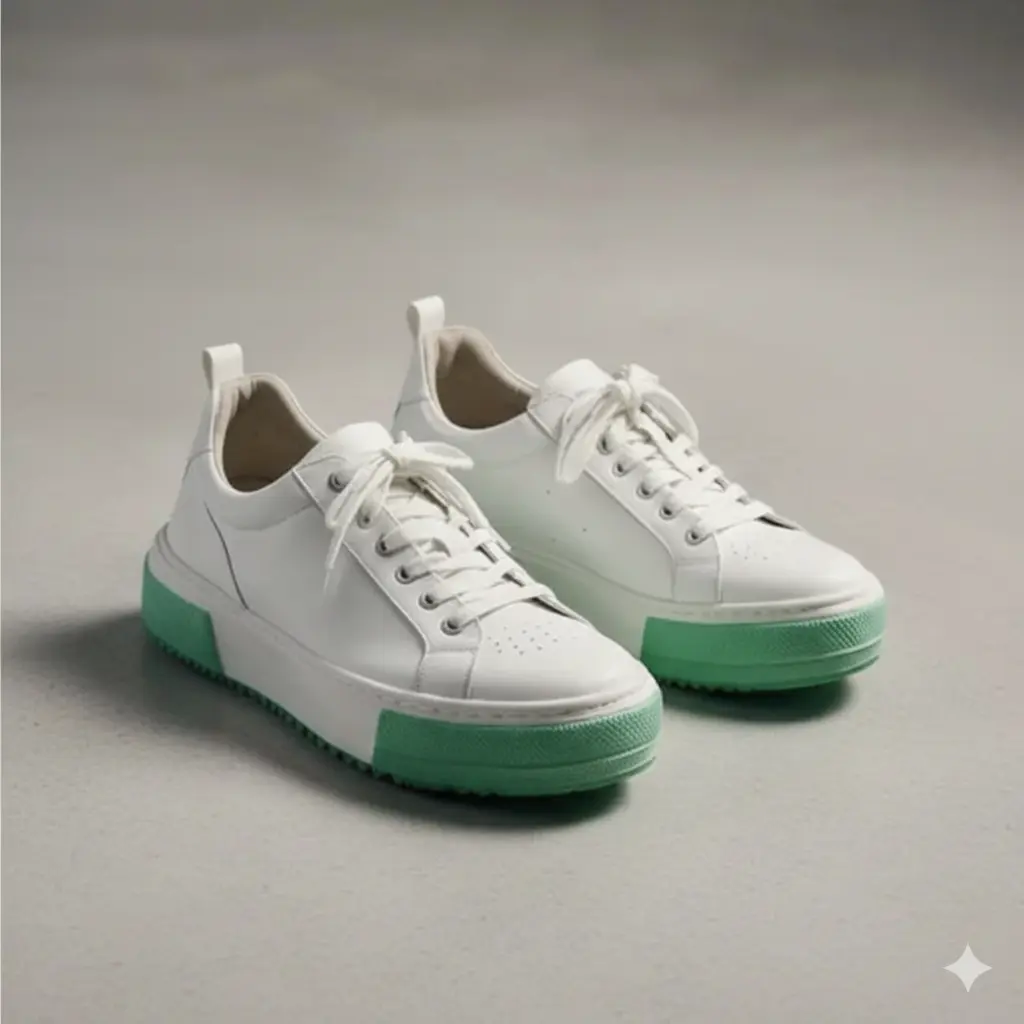
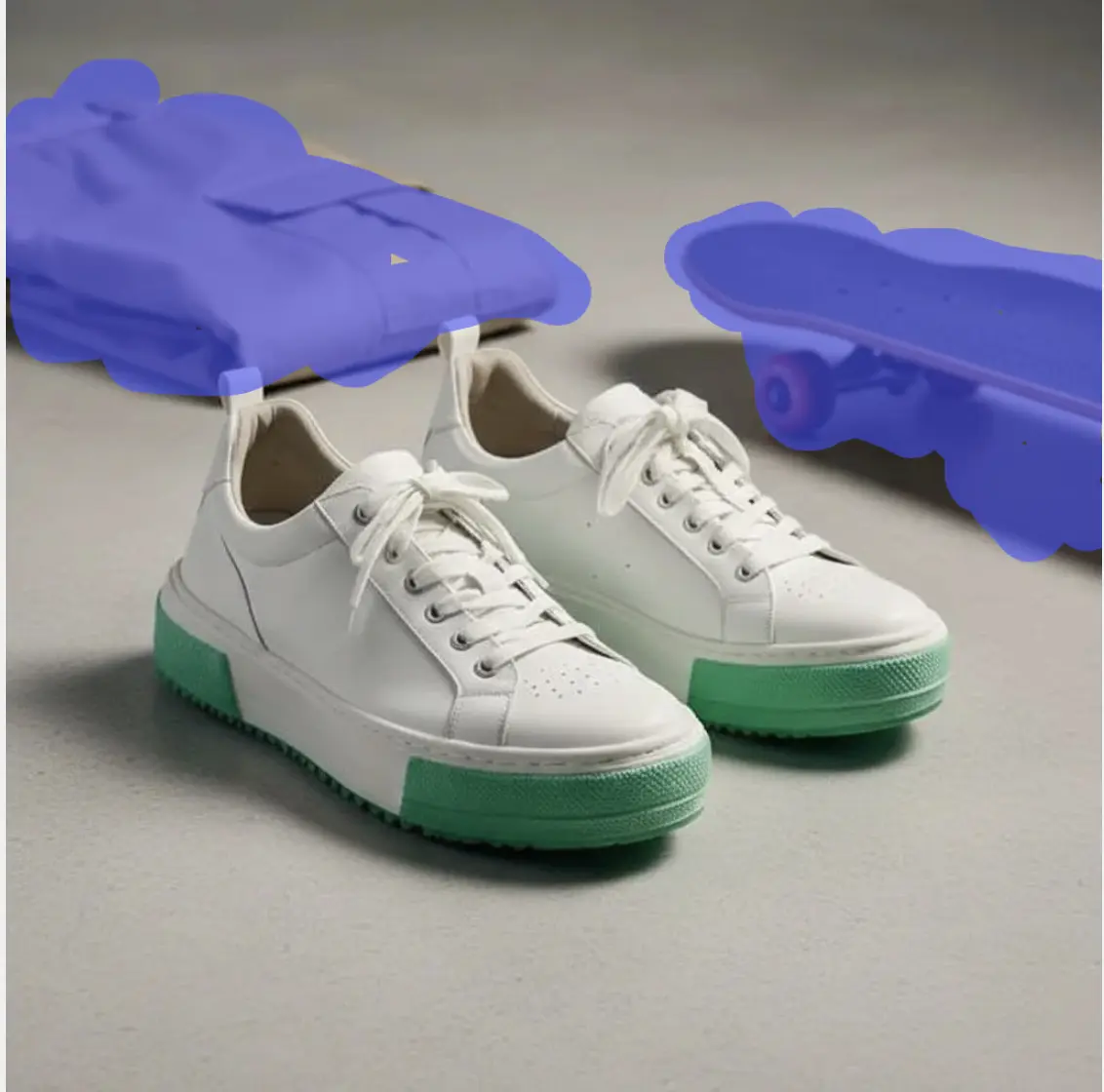
Product photos often contain distracting elements — props that don't fit, dust spots, reflections, or accidental objects in the frame. Our Magic Eraser uses AI to remove unwanted objects and intelligently fill the area with matching content. The result looks natural, as if the object was never there.
How It Works
Remove Objects from Photos in three simple steps.
Upload Your Photo
Upload the product photo with objects you want to remove.
Brush Over Objects
Use the brush tool to paint over unwanted elements. Adjust brush size for precision.
AI Removes & Fills
AI erases the object and intelligently fills the area to match the surrounding context.
See It In Action
Real examples of what you can achieve with Magic Eraser.


Who Uses Magic Eraser?
From solo sellers to enterprise teams — here's how people use this tool.
Remove Props & Clutter
Clean up styling props, price tags, and distracting elements from product shots.
Learn moreFix Photo Mistakes
Remove dust spots, reflections, and accidental objects that appeared in frame.
Learn moreClean Backgrounds
Erase background distractions before changing or keeping the background.
Learn moreProduct Retouching
Remove scratches, blemishes, and imperfections from products.
Learn moreKey Features
Everything you need in a professional magic eraser.
Intelligent Fill
AI doesn't just erase — it fills the area with context-aware content that matches the surroundings.
Precision Brush
Adjustable brush size for removing tiny imperfections or large objects with equal precision.
Multiple Removals
Remove as many objects as you need in a single session. No limit per image.
Non-Destructive
Preview changes before applying. Undo any edit if you're not satisfied.
Pro Tips for Best Results
- Use a brush size slightly larger than the object for clean edges
- For complex removals, work in multiple passes rather than one large selection
- Simpler backgrounds produce cleaner fills — remove objects before changing backgrounds
- Zoom in for precise removal of small imperfections
Frequently Asked Questions
Everything you need to know about Magic Eraser.
What objects can the Magic Eraser remove?
Almost anything — props, people, text, logos, dust, scratches, reflections, and more. The AI works best when the surrounding area has a consistent pattern or color.
How does the AI fill the erased area?
Our AI analyzes the surrounding pixels and generates content that matches the context. For backgrounds, it continues the pattern. For products, it reconstructs based on nearby details.
Can I remove multiple objects from one image?
Yes! Remove as many objects as you need. Each brush stroke is processed, and you can keep editing until you're satisfied.
Will the edit look natural?
In most cases, yes. The AI is trained to create seamless fills. Complex scenes with detailed patterns may require multiple passes for best results.
Can I undo a removal?
Yes. You can preview changes before applying and undo any edit. We also keep your original image intact.
Is this different from the Background Remover?
Yes. Background Remover removes everything except your product. Magic Eraser selectively removes specific objects while keeping the rest of the image intact.
More Tools You'll Love
Complete your workflow with these related tools.
Ready to Try Magic Eraser?
Join thousands of sellers using EcomShot to create professional product photos. Start free — no credit card required.
5 free credits • No credit card required • Cancel anytime